Friday, May 28, 2010

Google Buzz for mobile now available on more devices

Back in February, we launched Google Buzz for mobile, a tool to start interesting conversations when you are out and about. One of the most popular ways to access Google Buzz for mobile is through the web application (by going to buzz.google.com in your phone’s browser). When Buzz launched, it was only available for devices running Android 2.0+ and iPhone. Not any more! Today we’re a releasing an XHTML version of the Buzz website which can be accessed from many other mobile devices, including those running Android pre-2.0, Blackberry, Nokia S60, and Windows Mobile.


Just type buzz.google.com in your browser. Then when you log in using your password, you will be able to view the stream of buzz posts, post publicly or privately, comment or like a post, and more. On the BlackBerry platform, you can also enable location through your browser settings. This will allow you to get to the Nearby view, where you’ll find geo-tagged posts near you. In addition, you can tag your post with your location. Please note that location features might not work on some devices.


Android pre-2.0 devices can now run the same web app as newer versions of Android. You can also switch to the XHTML version if needed, and we will remember your preference.

We have worked hard to make Google Buzz for mobile accessible on more devices in more locations. It is now available in 37 languages through buzz.google.com and we’re excited to bring it to mobile devices with browsers that don’t support the HTML5 capabilities the webapp uses. We hope that you enjoy using Google Buzz on the go!

Update 5/27/2010 11:17: This new webpage is also functional on Palm WebOS phones.

Posted by Alex Kennberg, Software Engineer, Google Mobile

Thursday, May 27, 2010

Where Have I Been? Get Your Answer with the Google Location History Dashboard

When I was young, I used to imagine that there was a string attached to me, and that one day I’d be able to see my whole life’s travels laid out on a globe. Thanks to my phone, Google Latitude, and Google Location History, I’ve been able to pull a virtual string behind me for a few months. Alas, I can’t entertain myself for too long with just a piece of string. Today we’re launching an experimental new view in Beta for Google Location History to visualize your location history in a different -- and hopefully more interesting -- way than just a string of locations.

If you’ve already chosen to enable Location History, the new dashboard view will try to highlight interesting trends from your existing location history, such as trips you’ve taken, places you’ve visited, time spent at home vs. out, and more. Ever wonder how much time you’ve spent at work recently compared to six months ago, or where it was that you stopped on your last road trip? Just check out Location History for some of the answers.

For example, I took a look at my dashboard, and it reminded me that my brother and I watched the Oakland A’s win on the final at-bat on April 17th.


If you’re a road warrior like me, the dashboard can help you remember your trips and where you stopped along the way. Here’s an example of a trip I took to New York to get a little work done and visit some friends just west of Central Park.


Speaking of being a road warrior, sometimes I do wonder how long my string is. I at least know how long it is since I started using Latitude and Location History -- about 21,000 miles or 10% of the distance to the moon!


We’re really excited to make Latitude and your location more useful to you, but we definitely understand that your privacy is important. Just as before, Google Location History is entirely opt-in only and your location history is available privately to you and nobody else. Additionally, you may be asked to periodically re-enter your password when opening any Location History page, even if you’re signed in to your Google Account already (just to make sure you’re really you). Of course, you may always delete any or all of your location history in the Manage History tab or disable Location History at any time.

To try out the new dashboard yourself, enable Google Latitude in the background on your phone, turn on Google Location History, and wait a few days (up to a week) to build up enough history for the dashboard to begin showing information. This is just one interesting way you can do more with your location, but we don’t expect it to be the last. With last week’s launch of the Google Latitude API, we hope to soon see people create even more cool ways for you to choose how to use your location and location history.

The Location History dashboard’s information is still experimental and in Beta so you may notice some initial issues with accuracy around its estimates. We’re working on improving the Location History dashboard and Latitude location updating overall, so you’ll notice improvements for both over time. You may also want to try turning on WiFi or GPS on your phone to improve location history accuracy. Visit our Help Center to learn more or tell us your feedback and questions in our Help Forum. Give us suggestions and vote on other people’s on the Mobile Product Ideas page!

Thursday, May 20, 2010

Do More with Google Latitude and Your Location Using the New Latitude API

Location, location, location. In case you haven’t noticed, we’re really excited about all the ways location can make mobile apps and websites more useful. With Google Latitude, we created a simple way for you to own your location and let you easily share it with whomever you like, display it wherever you like, and even keep a history of it if you want. We wanted to give you even more ways to use your location, so today we’re announcing the Google Latitude API -- an easy and safe way for you to use and reuse your Latitude location with any apps or services that you can imagine!

Since launching Latitude, our team has been talking about all the cool things you could do with your continuously updated Latitude location. While we’ve built some of our ideas, there are simply too many exciting ones for us to do alone. Instead, we wanted to let you safely share your Latitude location with third parties who could create apps that do more with your location. Developers could, for example, build apps or services for:
  • Thermostats that turn on and off automatically when you’re driving towards or away from home.
  • Traffic that send alerts if there’s heavy traffic ahead of you or on a route you usually take based on your location history
  • Your credit card accounts to alert you of potential fraud when a purchase is made far from where you actually are.
  • Photo albums so your vacation photos appear on a map at all the places you visited based on your location history.
We want to help developers build all these applications and more, but our first priority is keeping you, the user, in control over your location. That way, you only use it when, where, and how you choose. Before any application, website, or feature you’ve chosen to use can access your Latitude data, you must specifically grant access to the developer and will see exactly what access or data they’re requesting. This includes whether you share your current best available vs. city-level location or your location history if you’ve opted in to using Google Location History. If you change your mind, you’ll be able to both see which developers have access to your Latitude data and revoke access from any developer at any time from your Google Account’s personal settings. Just like with Latitude, you always choose who can see your location.

We’ve also learned that making your phone’s continuous location available in the background is tricky to do accurately and efficiently -- just imagine your phone’s battery life if several apps were continuously getting your location in different ways? With this in mind, we built a free and open Latitude API that lets the third-party developers you choose start using your updated location in new ways without reinventing the wheel.

If you’re a developer, go to code.google.com/apis/latitude to get started and read our documentation. Join the Latitude API Google Group to ask questions, discuss the API with the community, and give us feedback. The Latitude API is being launched in Labs so we can listen to developer and user feedback before it graduates. We’re excited to see what you can do with Latitude and location so please do let us know what you think!

If you’re a Latitude user, check out our existing Latitude apps and keep an eye out for future apps and services that you can choose to use and do even more with your Latitude location. If you haven’t started using Latitude yet, get started so you too can start using your location in new ways.

Friday, May 14, 2010

Google Mobile now on Twitter and Facebook

Want to know what's on our minds or what we're up to more regularly? In addition to our blog and our YouTube channel, Google Mobile is now on Twitter and Facebook.

On Twitter, @GoogleMobile will share announcements, cool uses and product tips for Google products on mobile platforms, behind-the-scenes musings from Googlers and general goings-on in the mobile world. Simply go to twitter.com/googlemobile, sign in (or sign up), and choose "follow". You can also see our most recent Tweets on the right hand side of the Google Mobile Blog and follow us from there.


Google Mobile also now has a Fan Page on Facebook. On this page, you have the freedom to contribute just about anything you want - submit photos and videos, post suggestions and comments on our wall, and strike up discussions with other fans of Google Mobile.


To become a fan, just go to www.facebook.com/GoogleMobile and click “Like”.

We look forward to hearing from you.

Wednesday, May 12, 2010

Google Maps for Android Gets Biking Directions, Navigation Shortcut, Sharing, and More

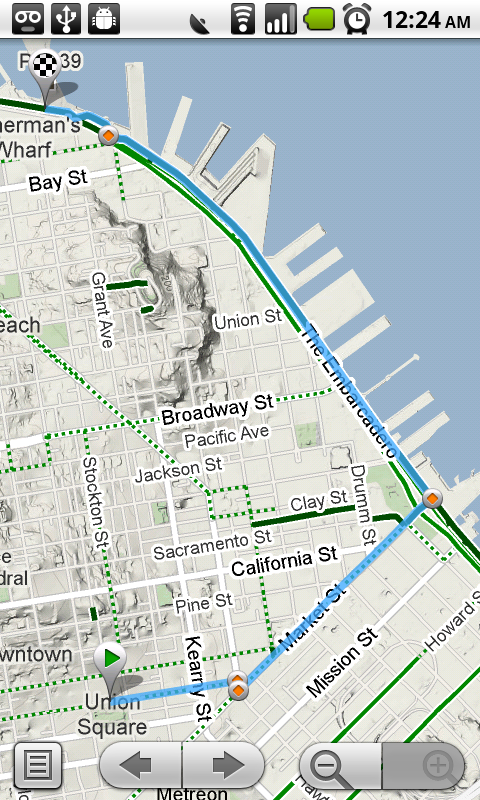
Starting today, Google Maps for mobile has a few new ways to help you and your friends quickly get to where you’re going whether you’re on 4 wheels or 2 (or maybe even 3). With Google Maps 4.2 for Android you can now get biking directions on the go, start Navigation from your Home screen, share places with friends, and more.

Biking directions
Since launching biking directions on desktop Google Maps, we’ve wanted to get you biking directions, lanes, and trails on your phone too. Just in time for National Bike Month, select the bike icon when getting directions to get an optimal bicycling route in the U.S. If you’re in the mood for a more scenic ride, you’ll also see the Bicycling layer on the map which shows dedicated bike-only trails (dark green), roads with bike lanes (light green), or roads that are good for biking but lack a dedicated lane (dashed green). You can always turn on this layer from the Layers menu to pick your own route. Add in the Labs’ Terrain layer, and you can decide to either climb or avoid that big hill on the way home!


Google Navigation shortcut
If you’re driving instead of riding, we wanted to make it easier and faster for you to get on the road with Google Maps Navigation as soon as you’re ready. With the new Navigation shortcut, you can pick a destination and be on your way with as little as 2 taps of your finger. Select the “Navigation” icon in your phone’s app launcher to get the new destination selection view. Then, speak or type your destination, pick one from your contacts, choose a starred place, or select a recent destination. Navigation will begin and you’re good to go. Make it even easier on yourself by adding the Navigation icon right on your Home screen.


Sharing
Once you figure out where you’re going, why not get some friends to meet you there? From any search results page, choose to “Share this place” to send that place’s info, such as its address and phone number, to whomever you like. If you want to meet someone on a street corner or gather friends at an outdoor concert, you can also send an exact location from the map -- even a snapshot of your current location. Just use the share option after selecting a point on the map, your “My Location” blue dot, or yourself in Latitude if it’s enabled. Whether you’re sharing a place or a location, you’ll be able to send it to small groups via an email or text message or send it widely with apps like Google Buzz, Facebook, or Twitter.

Get these new features by searching for Google Maps in Android Market from Android 1.6+ phones (On your phone now? Tap here). Update Maps to version 4.2, available in all the countries and languages where Maps is currently available. Visit our Help Center to learn more, ask questions in our Help Forum, or give us suggestions and vote on other people’s on the Mobile Product Ideas page.

Thursday, May 6, 2010

Translate the real world with Google Goggles

Traveling to another country can be an amazing experience. The opportunity to immerse yourself in a different culture can give you a new perspective. However, it can be hard to fully enjoy the experience if you do not understand the local language. For example, ordering food from a menu you can not read can be an adventure. Today we are introducing a new feature of Google Goggles that will prove useful to travelers and monoglots everywhere: Goggles translation.

Here’s how it works:
  • Point your phone at a word or phrase. Use the region of interest button to draw a box around specific words
  • Press the shutter button
  • If Goggles recognizes the text, it will give you the option to translate
  • Press the translate button to select the source and destination languages.


Google Goggles in action (click images to see large version)


The first Goggles translation prototype was unveiled earlier this year at the Mobile World Congress in Barcelona and could only recognize German text. Today Goggles can read English, French, Italian, German and Spanish and can translate to many more languages. We are hard at work extending our recognition capabilities to other Latin-based languages. Our goal is to eventually read non-Latin languages (such as Chinese, Hindi and Arabic) as well.

Every new release of Google Goggles contains at least one new feature and a large number of improvements to our existing functionality. In addition to translation, Goggles v1.1 features improved barcode recognition, a larger corpus of artwork, recognition of many more products and logos, an improved user interface, and the ability to initiate visual searches using images in your phone’s photo gallery.

Computer vision is a hard problem. While we are excited about Goggles v1.1, we know that there are many images that we cannot yet recognize. The Google Goggles team is working on solving the technical challenges required to make computers see. We hope you are as excited as we are about the possibilities of visual search.

Google Goggles v1.1 is available on devices running Android 1.6 and higher. To download, please scan the QR code below or go to the Android Market app on your phone and search for “Google Goggles”. See our help center for more information.


Wednesday, May 5, 2010

Google's new look for mobile

When it comes to mobile search, we strive to not only give you the same comprehensiveness and relevance as when searching with Google on your computer, but also a consistent look, feel, and overall user experience. So today, as we roll out a new look for Google Search results on your computer, we are happy to announce similar changes to Google Search results for mobile.

When you go to Google.com in the US on your iPhone or Android-powered device, and enter a search, you can now tap on the button to the left of the search box on the results page to see a new search options menu. Then, selecting any item in the menu will refine your search. For example, if you are looking for recent results for "Mother's day gift", simply tap the "Past week" option.


You may notice that when the menu expands, the search results slide off screen to the right. Note that you can still interact with them and see them in full just by panning to the right. Also, there are some additional menu options, like "News" and "Products". In the weeks to come, we will be supporting more devices and locales, and expanding the number of options available.

Update on 5/7 @ 9:20 am: Note that Palm webOS is now supported as well -- as some of you have noticed.

Saturday, May 1, 2010

Distracted driving and cell phones

"Distracted driving" is when you drive while taking your hands off the steering wheel, your eyes off the road, or your mind off of driving. Whether you are eating while driving or using your cell phone while driving, distracted driving increases your chances of getting into a serious accident. Today, organizations throughout the US are collaborating to raise the awareness about the dangers of distracted driving. Read more about what the Google Maps team is doing with the Oprah Winfrey Show.

With the exception of Google Maps Navigation, which is designed for hands-free use with a car dock, Google Mobile products are not intended to be used while you are driving. Hand your phone to a passenger or park your car in a safe place if you need to search for a restaurant or check your email while behind the wheel.

For more information about distracted driving and how you can help prevent it, please visit www.distracteddriving.gov. And if you're in the US and have an iPhone, Palm Pre, or Android-powered device, you can go to Google.com in your browser today to see our mobile doodle. Do not do this while you are driving, of course.

Thursday, April 29, 2010

The New Image Search for Android and iPhone

When you do an image search, we find that it is typical that you will look through many pages of search results. So in the redesign of Google Image Search for mobile, available today for iPhone 3.0+ and Android 2.1 devices, we focused on making it easy to quickly see as many image thumbnails as possible:
  • The thumbnails are square to maximize the number of images we can get on the screen at one time so you can scan them quickly
  • You can swipe to see the next or previous page of results, or tap the large, stationary 'Next' and 'Previous' page buttons
  • We optimized for speed so that the images appear quickly when you browse
When it comes to viewing the images, we now make them as large as possible by introducing a special image viewing page:
  • The black background emphasizes the image and the buttons fade after a few seconds so you can just see images with little distraction
  • Easily browse through the images by swiping from picture to picture


To try this new version of Image Search, just go to www.google.com on your phone and tap on “Images.” The new experience is available in 38 languages worldwide. Whether you like to look through pictures of prom dresses, impressionist paintings or 猫 ジャンプ we hope you love this update to Image Search for mobile.

Update on 6/2 @ 5:40 pm: This version of Image Search is now available for all Android and Palm webOS devices.

Wednesday, April 28, 2010

New Place Pages for mobile

Last fall, we launched Place Pages which organize relevant and useful information about places on Google Maps. Since then we've been developing a version, available now, which gives you access to the same useful information optimized for your mobile phone. For example, in the video below, the Place Page for Mama's restaurant in San Francisco shows location information, customer ratings, opening hours and what people are saying about the restaurant in summary format.


To get more details on opening hours or on customer specific comments related to the food, service or ambiance, simply click on those respective sections to show more information instantly. The Place Page also provides links to useful websites where the user can read full reviews about the place. Lastly, if address and cross street information is not enough, click on the map button and you will be taken to a full screen dynamic map which is pannable and zoomable. In this way you can quickly see the restaurant's location in the context of the entire neighborhood.

To try this yourself, go to google.com on your phone's browser and search for "mama's sf". On the search results page, click on the listing for Mama's restaurant to go to the Place Page. This mobile optimized Place Page is currently supported on Android-powered devices and iPhones/iPod touches in the US.

Thursday, April 22, 2010

Search by Voice Comes to Google Maps 4.1 for Windows Mobile and Symbian S60 phones

We understand that typing on phones isn’t as easy or fast as talking into them. As a result, we’re big fans of letting you search in Google Maps for mobile in the most natural way possible -- with your voice! Not wanting the BlackBerry and Android folks to have all the fun, today we’re happy to announce Search by voice in Google Maps 4.1 on Windows Mobile and Symbian S60 phones.

Search by voice lets you easily search for anything by simply speaking your search terms instead of typing them. Just open Google Maps, press your phone’s “call” button, and clearly speak your search term like “Park Plaza.” Search by voice works with all the kinds of searches Google Maps for mobile already supports, including places, addresses (1600 Amphitheatre Parkway), specific businesses (The French Laundry), or types of businesses (sushi restaurants new york).


You may also notice a few other additions, including a redesigned settings page with Search by voice language choices. Choose your preferred language from the supported options, including multiple English accents and Mandarin Chinese. Also, if you find a problem with any information in Google Maps, you can use the “Report a problem” option to let us know.


To get started, install the latest version of Google Maps for mobile 4.1 for Windows Mobile and Symbian S60 by going to m.google.com/maps in your phone’s standard web browser (e.g. Internet Explorer on Windows Mobile). This update is available in all the countries and languages where Google Maps for mobile is currently available.

Visit our Help Center to learn more or tell us your feedback and questions in our Help Forum. Give us suggestions and vote on other people’s on the Mobile Product Ideas page.

Posted by Yuliang Wang and Yifei Zhang, Software Engineers, Google Mobile Team

Google Buzz Layer Now Available for Google Maps On Your Computer

(Cross-posted from Google LatLong)

With Google Buzz for mobile, you can choose to post publicly and include your location, providing context for your followers and allowing others to see what you have to say about a place on a map. We’ve received a lot of requests to make the Google Buzz layer available on desktop Google Maps, and today we're doing just that.

Now you can use Google Maps from the comfort of your computer to find out what people are saying about places near and far. If you’re new to the public Google Buzz layer, check out some tips for exploring the Buzz layer on Google Maps for mobile to see a few of the fun ways people have already been using it on their phones, sharing everything from breaking news to restaurant recommendations.


To view the Google Buzz layer from your computer, go to Google Maps in your web browser and select Buzz from the More... menu in the top right corner of the map. Find an interesting area like your neighborhood and select any available icon to see what’s going on there. In the post’s window, click on the name to see the author’s public profile, the timestamp to comment on the post, or the place to see it in Maps. The Google Buzz layer is available for maps.google.com in all currently supported languages.

The desktop layer is view-only, however, you can post using Google Buzz for mobile from the web app (buzz.google.com) on your phone, Google Maps for mobile, the Android widget, and more.

Wednesday, April 21, 2010

Explore the UK and Ireland with Google Maps Navigation

Despite recent travel disruption due to Eyjafjallajökull, those of us marooned in the UK and Ireland have enjoyed lovely sunny weather. It’s the perfect excuse to take a road trip, wouldn’t you agree?


With Google Maps Navigation (beta), now available in the UK and Ireland for Android devices 1.6 and higher, traveling by car couldn’t be easier. Like other satnav devices, Navigation includes 3D views, turn-by-turn voice guidance, and automatic rerouting. But because Google Maps Navigation is connected to the Internet, it also features powerful functionality you can’t get from other satnav services, including the most up to date map, business, and traffic data, access to satellite and street views, and of course, search.

With Google Maps Navigation, you can search by voice, and in plain English -- just press the voice search button on your Android phone, say “navigate to Sainsbury’s,” and Navigation will open automatically and guide you to the supermarket. Running out of petrol? You can search along your route for nearby petrol stations, cash points, restaurants, and car parks, without exiting the navigation path.


Google Maps Navigation is available in the US, UK, and Ireland. And like other Google Maps features, Navigation is free. To get Google Maps Navigation on your Android phone, search for “Google Maps” on Android Market and download the latest update. Visit the Google Maps Navigation page to learn more and watch a video, or check out the help center if you have questions.


posted by Sara Rowghani, Product Marketing Manager

Wednesday, April 14, 2010

The Iterative Web App: Redesign of the Compose Page

On April 7th 2009, we announced a new version of Gmail for mobile for iPhone and Android-powered devices. Among the improvements was a complete redesign of the web application's underlying code which allows us to more rapidly develop and release new features that users have been asking for, as explained in our first post. We'd like to introduce The Iterative Webapp, a series where we will continue to release features for Gmail for mobile. Today: Compose view redesign


You're on the subway and you get the brilliant idea to host a TV viewing party for your friends for the premier of Conan O'Brien's new show. You pull out your phone (or your iPad) and start typing names into the compose page at gmail.com. (Yes, it works on the subway.) You've added Naveed, Suzy and 7 others before you remember that Naveed made you eat grass at the last BBQ. You want to remove him from the list but his email address has scrolled way out of view. Argh! After some intense scrolling and lots of backspaces, you finally manage to get rid of Naveed's email address.

Enter our redesigned Compose page. It has new address fields that automatically expand to fit all the email addresses that you're entering, so you'll never have to worry about this type of problem again.
As always, when you start typing an name into the new compose view, you'll see possible contact choices in the autocomplete dropdown. When you select a contact from the autocomplete dropdown, only the person's name is entered into the address field. This saves screen space and won't leave you thinking "man, who is hikingfan@gmail.com?" when you're reviewing an email before sending.

Once you select a contact from the autocomplete menu, you'll also notice that the contact becomes an object that you can tap on. Tapping on a contact opens a detailed view that let's you double-check the person's email address or remove them from the email. Yes, this means you can remove an email address in two taps!

Some other nifty new features which will help you compose your emails faster:

  • Remove the contact you just added by tapping Backspace.
  • Press the '+' button to see your top contacts, or hide them by pressing the '–' button.
  • If for some reason autocomplete fails you and the person you are trying to reach is a Gmail user, just type their Gmail username and a comma, and we'll take care of the pesky @ sign and the rest (so [hikingfan] becomes [hikingfan@gmail.com].)
  • The page now fills the entire screen, giving you more space to see what you're writing.

This update is available for Android, iPad, iPhone, and iPod Touch devices. We always love to hear what you'd like to see next, so be sure to leave your feedback in our Help Forum or the Mobile Product Ideas page!

Happy composing!

Posted by Andra Adams, Software Engineer Intern, Google Mobile

Google Mobile App for iPad now available in the App Store

We’re pleased to announce that a new iPad-friendly version of Google Mobile App is now available in the App Store worldwide. By “iPad-friendly”, we mean that this new version has been designed to show neatly on the iPad’s screen, and that the usual features of Google Mobile App for iPhone, like search by voice and My Location, work well. From the Apps tab, you can also easily navigate to Google’s web-based apps, such as Gmail, which was recently optimized for iPad.

While this first version of Google Mobile App for iPad is essentially the same app we’ve built for iPhone, we’re working on improving Google Mobile App so that it takes advantage of iPad’s features. Stay tuned as we continue to make it and other Google products even better on this new type of device.

To download Google Mobile App to your iPad, iPhone, or iPod touch (requires OS 3.0 or higher), search for “Google Mobile App” in the App Store or just visit http://itunes.com/app/googlemobileapp.